Why add zoom to a software demo?
Zoom moments help viewers focus on the right button, menu, setting, or workflow step.
Summary
Software demo video editor. Software demos often show too much of the screen at once. FrameFocus helps you guide attention by zooming into the exact UI area that matters at each step. Viewers get lost when every panel and control is visible at once. Focused zoom moments improve understanding. Typical use cases include Web app demos, Desktop app walkthroughs, Feature tours, Training videos. This guide explains how FrameFocus, a web-based screen recording zoom editor, helps creators and teams produce clearer demos and tutorials.
Viewers get lost when every panel and control is visible at once. Focused zoom moments improve understanding. FrameFocus solves it in your browser with a click-to-focus method: you click the exact region viewers should follow, adjust timing and zoom strength, and export without re-recording or heavyweight timeline editing.
Viewers get lost when every panel and control is visible at once. Focused zoom moments improve understanding.
FrameFocus helps you add smooth zoom moments, highlight exactly where viewers should look, and improve tutorials without re-recording.
Web app demos
Desktop app walkthroughs
Feature tours
Training videos
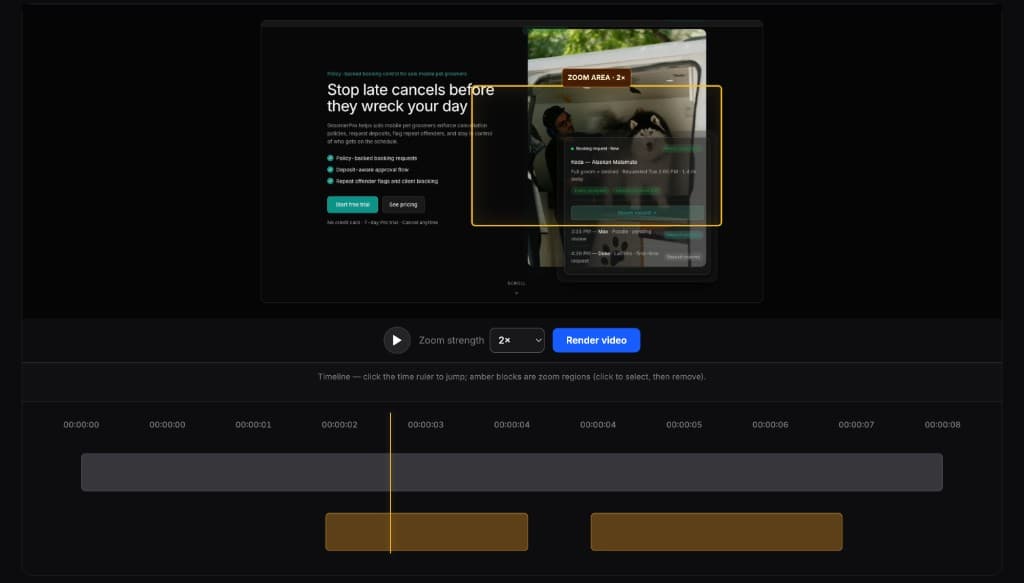
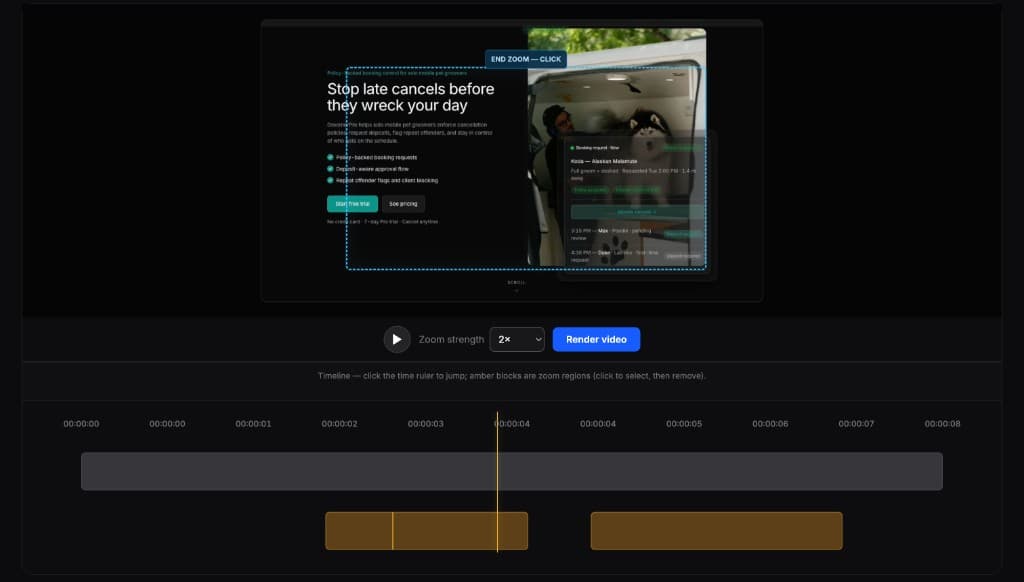
Mark where the zoom starts and where it ends directly on your preview. Amber regions on the timeline show each zoom segment so you can adjust timing with confidence.
Full editors are powerful, but they are often overkill for this one task. FrameFocus is built for demos, tutorials, lessons, and walkthroughs that need simple zoom editing for screen recordings.
Zoom moments help viewers focus on the right button, menu, setting, or workflow step.
Yes. FrameFocus works well for web app, desktop app, and software walkthrough screen recordings.
Add smooth zoom moments, fix unclear screen recordings, and publish clearer demos, tutorials, lessons, and support walkthroughs.